

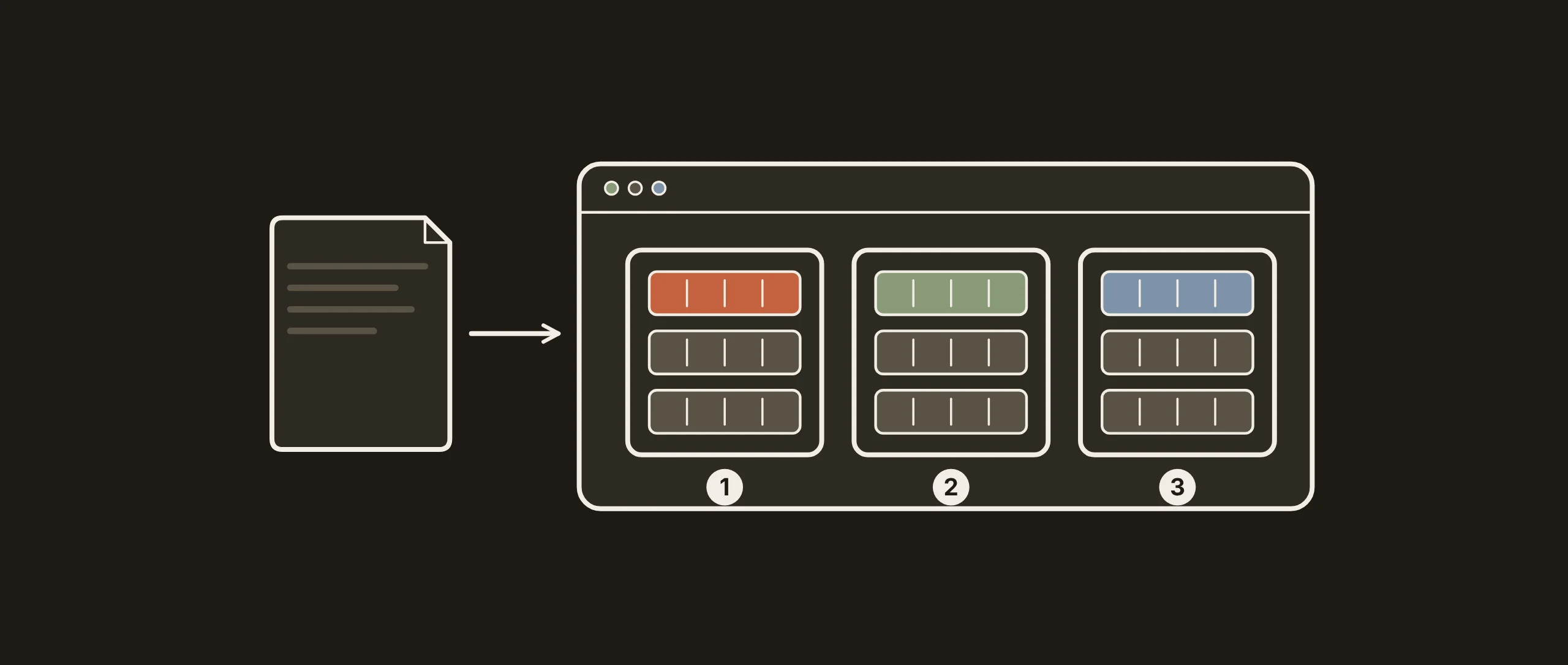
Docker on a VPS pays off when one server has to run several sites or services with different software versions, or when the same project must be deployed identically on different machines. For a single ordinary WordPress site it is an extra layer of administration. If you do choose Docker, install Docker Engine from the official repository, describe WordPress and MariaDB in one compose.yaml, publish the port on 127.0.0.1 only (Docker bypasses UFW), cap the logs, and take a daily database dump plus a volume archive with a tested restore.
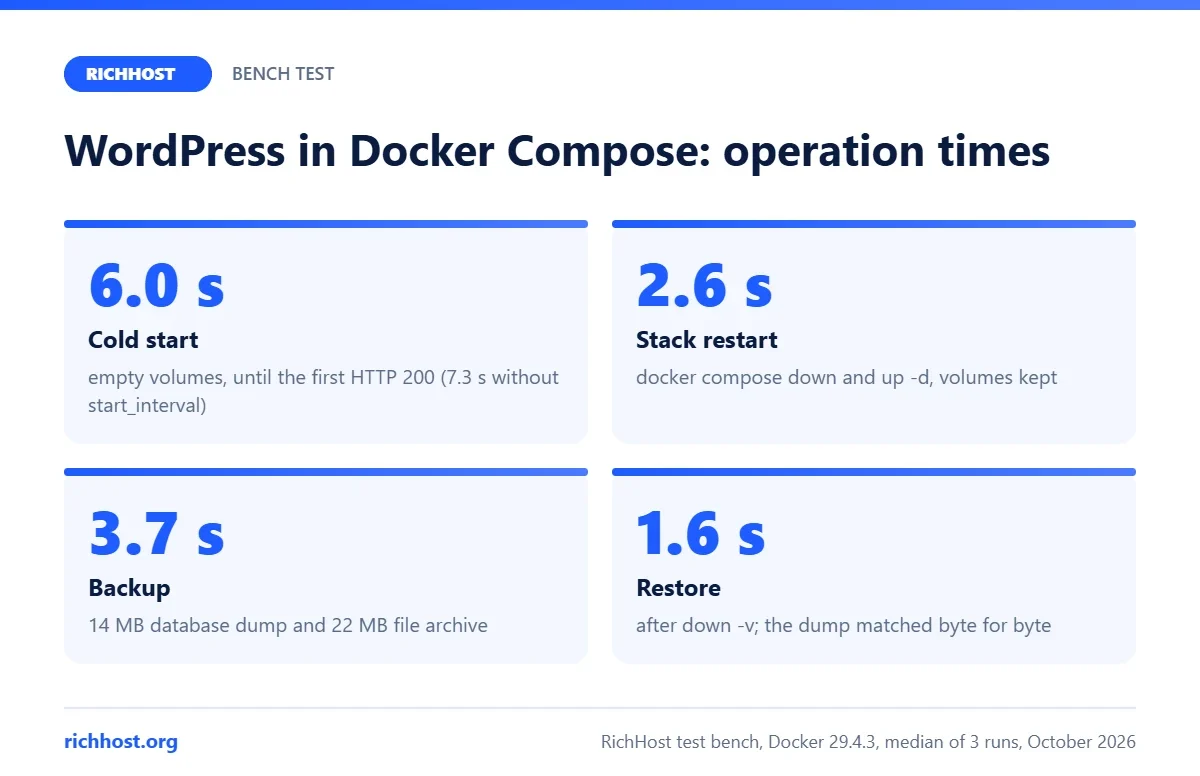
On our test bench this stack, including Docker itself, used about 413 MiB of RAM, started from scratch in 6 seconds and, after its volumes were deleted completely, was restored from backup in 1.6 seconds with a byte-identical database. All files, commands and real outputs are below.
How we tested
RichHost test bench: an isolated Ubuntu 24.04 container, 2 vCPU / 8 GB, October 2026. Docker Engine 29.4.3 and Compose v5.1.3 from the download.docker.com packages, overlay2 storage driver, cgroup v1. Docker Hub is not reachable from the bench, so we replaced the official mariadb and wordpress images via compose.override.yaml with our own builds from Ubuntu 24.04 packages (MariaDB 10.11, PHP 8.3 + Apache, WordPress 6.7.2), using the same environment variables and the same compose.yaml shown below. That is why the image sizes (475-490 MB) should not be compared with the official ones, and memory and start-up times are a guide rather than a guarantee. Test data: 2,301 posts and 501 comments, a 14 MB database and 22 MB of files. Times are the median of three runs. UFW was not enabled on the shared bench; instead we inspected the iptables rules Docker creates. Container names in the outputs are shortened to wp-..., as for a project in /opt/wp. All containers, images, volumes and firewall rules were removed after the tests.
What a container is and how it differs from a VPS
A VPS is a virtual machine with its own kernel and a full operating system. A Docker container runs inside that system, shares its kernel and isolates only processes, files and networking using Linux kernel features (namespaces and cgroups). An image is a read-only template, a container is a process started from it, and a volume is a directory for data that must survive the container being recreated.
| Virtual machine (VPS) | Docker container | |
|---|---|---|
| OS kernel | its own | shared with the server |
| Contents | a full OS | the application and its libraries |
| Start-up | OS boot | seconds: our WordPress stack came up in 2.6 s |
| Isolation | hypervisor | kernel features; the docker group is effectively root |
| Where data lives | on the VM disk | in volumes; everything else is lost when the container is recreated |
We hit the last row in practice: WP-CLI, copied into a running container, was gone after docker compose down and up -d, while the WordPress posts, files and settings in the volumes survived. So put everything that must persist into volumes and describe the rest in the image or compose.yaml. Containers across many servers and orchestrators are covered in our article on containerization and microservices.
When Docker makes sense for a small site
| If | Do this |
|---|---|
| One WordPress site, no time to administer a server | Shared hosting: the provider looks after the OS, PHP, database, SSL and firewall |
| You already have a VPS with nginx, PHP and MariaDB set up, one site | Docker is optional: a stack without containers is simpler to maintain |
| Several projects on one VPS with different PHP, Node.js or database versions | Docker Compose: each project in its own directory with its own compose.yaml |
| You need identical environments on a laptop, a staging and a production server | Docker: the same image and compose.yaml everywhere |
| A bot, queues, Redis or other services run next to the site | Docker Compose with an internal network and no published service ports |
| You need a cluster of servers with autoscaling | An orchestrator (Kubernetes etc.), a different level of complexity |
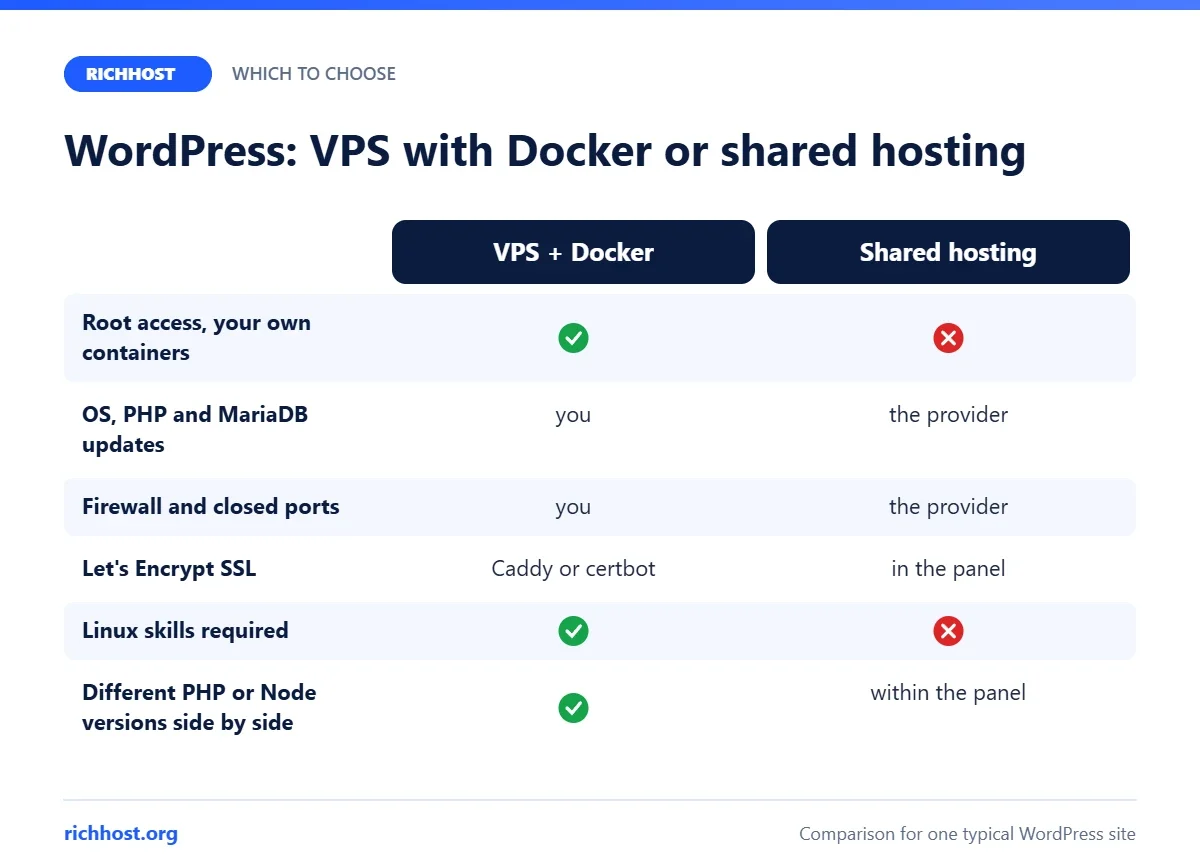
For a typical WordPress site the difference is not performance but who is responsible for the server. On a VPS with Docker, OS and image updates, backups, certificates and the firewall are your job. If that is not how you want to spend your time, consider RichHost shared hosting: plans from $8 per month (A3), NVMe disks, our own control panel with an AI assistant and free Let’s Encrypt SSL. We break down web hosting cost separately, and the general comparison is in our guide to which type of hosting your site needs.
Installing Docker on Ubuntu 24.04
Prepare the server first: updates, a sudo user, SSH key login and UFW are covered in our Ubuntu 24.04 VPS initial setup guide. Then run the commands from the official Docker documentation (checked 25.10.2026, docs.docker.com/engine/install/ubuntu), which supports Ubuntu 22.04, 24.04, 26.04 and 26.10 and recommends removing unofficial packages such as docker.io first.
# 1. remove conflicting packages (apt says so if none are installed)
sudo apt remove $(dpkg --get-selections docker.io docker-compose docker-compose-v2 docker-doc docker-buildx podman-docker containerd runc | cut -f1)
# 2. Docker repository
sudo apt update
sudo apt install -y ca-certificates curl
sudo install -m 0755 -d /etc/apt/keyrings
sudo curl -fsSL https://download.docker.com/linux/ubuntu/gpg -o /etc/apt/keyrings/docker.asc
sudo chmod a+r /etc/apt/keyrings/docker.asc
sudo tee /etc/apt/sources.list.d/docker.sources <<EOF
Types: deb
URIs: https://download.docker.com/linux/ubuntu
Suites: $(. /etc/os-release && echo "${UBUNTU_CODENAME:-$VERSION_CODENAME}")
Components: stable
Architectures: $(dpkg --print-architecture)
Signed-By: /etc/apt/keyrings/docker.asc
EOF
# 3. packages
sudo apt update
sudo apt install -y docker-ce docker-ce-cli containerd.io docker-buildx-plugin docker-compose-plugin
The packages from this repository were already installed on the bench, so we checked the result:
$ docker --version
Docker version 29.4.3, build 055a478
$ docker compose version
Docker Compose version v5.1.3
$ docker info | grep -E "Storage Driver|Logging Driver"
 Storage Driver: overlay2
 Logging Driver: json-file
Can you use the Ubuntu archive packages instead? You can, but they lag behind and do not include Compose v5:
| Package (25.10.2026) | Ubuntu 24.04 archive | Docker repository |
|---|---|---|
| Docker Engine | docker.io 29.1.3 |
docker-ce 29.4.3 |
| Compose | docker-compose-v2 2.40.3 |
docker-compose-plugin 5.1.3 |
Compose v5 was released in 2025 and is functionally identical to v2; the number jumped to 5 to avoid confusion with the “2” and “3” file formats (Compose history). The old hyphenated docker-compose tool (v1, Python) has received no updates since June 2023 (Docker blog, 31.01.2023). The version: key at the top of the file is no longer needed, and current Compose says so:
$ docker compose config -q
level=warning msg="compose.yaml: the attribute `version` is obsolete, it will be ignored, please remove it to avoid potential confusion"
You can add your user to the docker group (sudo usermod -aG docker $USER), but remember that any member of this group can mount the whole file system into a container, which makes it equivalent to root.
Log rotation: daemon.json
By default the json-file driver keeps container logs without limits, and a chatty application will eventually fill the disk. Cap it right away:
sudo tee /etc/docker/daemon.json <<EOF
{
  "log-driver": "json-file",
  "log-opts": { "max-size": "10m", "max-file": "3" }
}
EOF
sudo systemctl restart docker
The setting applies to containers created after Docker is restarted. We checked it: a test container wrote to its log non-stop for 15 seconds, and only three files of up to 10 MB, 21 MB in total, remained on disk:
$ docker inspect --format '{{json .HostConfig.LogConfig}}' wp-wordpress-1
{"Type":"json-file","Config":{"max-file":"3","max-size":"10m"}}
# test container after 15 s of non-stop output
$ ls -l /var/lib/docker/containers/<id>/
0.9 MB <id>-json.log
9.5 MB <id>-json.log.1
9.5 MB <id>-json.log.2
compose.yaml for WordPress and MariaDB
The project layout is minimal: a /opt/wp directory with compose.yaml, .env and backup.sh. WordPress code, uploads and the database live in two named volumes.
# /opt/wp/compose.yaml
services:
  db:
    image: mariadb:11.4
    restart: unless-stopped
    env_file: .env
    volumes:
      - db_data:/var/lib/mysql
    healthcheck:
      test: ["CMD", "healthcheck.sh", "--connect", "--innodb_initialized"]
      interval: 10s
      timeout: 5s
      retries: 5
      start_period: 30s
      start_interval: 1s

  wordpress:
    image: wordpress:php8.3-apache
    restart: unless-stopped
    depends_on:
      db:
        condition: service_healthy
    ports:
      - "127.0.0.1:8092:80"   # localhost only: nginx or Caddy proxies it to the outside
    environment:
      WORDPRESS_DB_HOST: db
      WORDPRESS_DB_NAME: ${MARIADB_DATABASE}
      WORDPRESS_DB_USER: ${MARIADB_USER}
      WORDPRESS_DB_PASSWORD: ${MARIADB_PASSWORD}
    volumes:
      - wp_data:/var/www/html

volumes:
  db_data:
  wp_data:
What matters here:
healthcheckuses thehealthcheck.shscript shipped in the official MariaDB image, anddepends_on: condition: service_healthydoes not start WordPress until the database is ready.start_interval: 1smakes Docker probe the database more often during start-up (requires Docker Engine 25 or newer). On the bench it cut the cold start from 7.3 to 6.0 s.restart: unless-stoppedbrings the stack back after a server reboot or a daemon failure. We stopped and restarted dockerd: the site answered 200 after 2.6 s without any command from us.- The
dbservice has noportssection, so the database is reachable only by containers on the internal Compose network. - MariaDB 11.4 is an LTS branch supported until 2029; the
wordpress:php8.3-apachetag gives the latest WordPress with PHP 8.3 and Apache.
Keep the passwords in .env next to compose.yaml: Compose substitutes the ${...} variables from it, and env_file passes them into the database container.
cd /opt/wp
umask 077
cat > .env <<EOF
MARIADB_ROOT_PASSWORD=$(openssl rand -base64 24)
MARIADB_DATABASE=wordpress
MARIADB_USER=wordpress
MARIADB_PASSWORD=$(openssl rand -base64 24)
EOF
docker compose config -q && docker compose up -d
$ docker compose ps
NAME SERVICE STATUS PORTS
wp-db-1 db Up 25 seconds (healthy) 3306/tcp
wp-wordpress-1 wordpress Up 22 seconds 127.0.0.1:8092->80/tcpThen open the site through a tunnel (ssh -L 8092:127.0.0.1:8092 user@server) or set up an HTTPS proxy straight away. Our guide to installing LEMP on Ubuntu 24.04 shows how to install nginx and get a Let’s Encrypt certificate: with Docker you only need its nginx and certbot part, as the containers replace PHP and MariaDB.
Why the healthcheck deserves attention: in the first version of our test image the probe connected to the database over TCP as root, which is only allowed to log in from localhost. The database was running but marked unhealthy, and Compose correctly refused to start WordPress. The health log shows the cause:
$ docker compose up -d
 Container wp-db-1 Waiting
 Container wp-db-1 Error dependency db failed to start
dependency failed to start: container wp-db-1 is unhealthy
$ docker inspect --format '{{json .State.Health}}' wp-db-1
{"Status":"unhealthy","FailingStreak":10,"Log":[{..."ExitCode":1,"Output":"ERROR 1045 (28000): Access denied for user 'root'@'127.0.0.1' (using password: YES)\n"}...]}
How much memory and time the stack needs
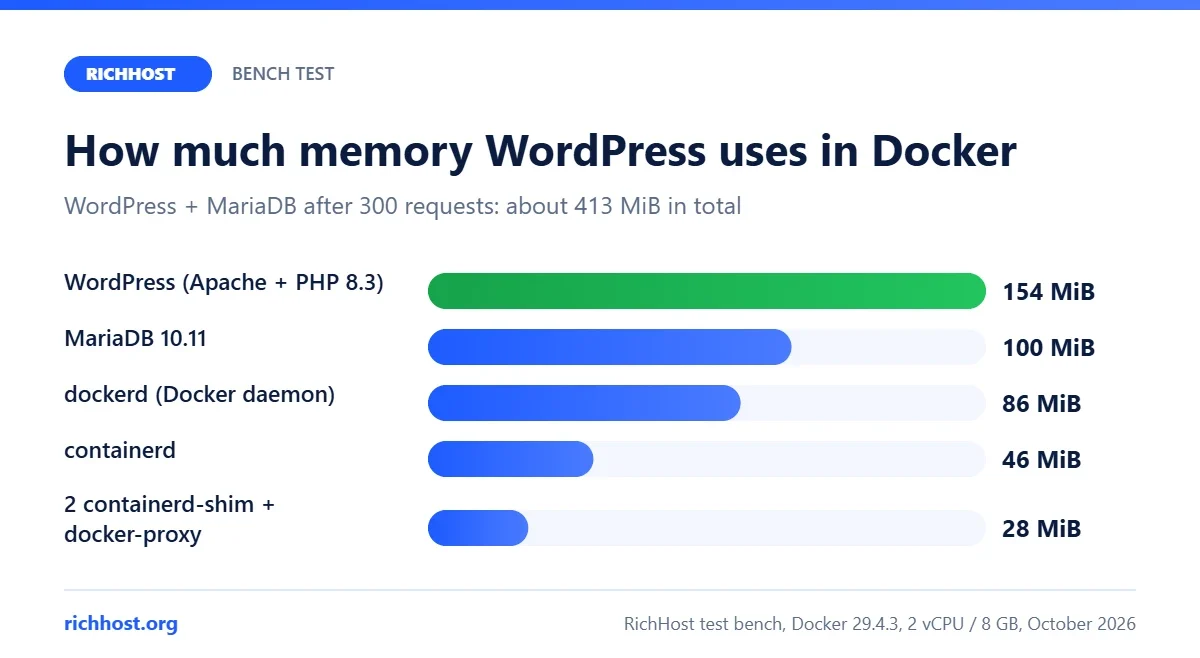
$ docker stats --no-stream --format 'table {{.Name}}\t{{.CPUPerc}}\t{{.MemUsage}}\t{{.PIDs}}'
NAME               CPU %     MEM USAGE / LIMIT     PIDS
wp-wordpress-1     1.05%     153.5MiB / 7.839GiB   19
wp-db-1            0.02%     100MiB / 7.839GiB     23
$ ps -eo rss,comm | grep -E "dockerd|containerd|docker-proxy" | awk '{printf "%.1fMiB %s\n",$1/1024,$2}'
86.0MiB dockerd
45.5MiB containerd
11.1MiB containerd-shim
10.7MiB containerd-shim
5.8MiB docker-proxy
After 300 requests to the home page (10 concurrent), the WordPress container used 154 MiB, MariaDB 100 MiB, and dockerd, containerd and helper processes about 159 MiB more. That is roughly 413 MiB before the OS itself. As an estimate, a 1 GB VPS is tight for this stack, while 2 GB leaves room for caching, plugins and more Apache processes.
Docker and UFW: published ports bypass the firewall
The official documentation states plainly that Docker and UFW are incompatible: packets to published ports are redirected in the nat table before UFW rules in the INPUT chain ever see them (Packet filtering and firewalls, checked 25.10.2026). On the bench we started a test container with -p 8093:80 next to the stack and looked at what Docker created:
$ sudo ss -ltn | grep -E ":8092|:8093" | awk '{print $1, $4}'
LISTEN 127.0.0.1:8092
LISTEN 0.0.0.0:8093
$ sudo iptables -t nat -S DOCKER
-A DOCKER -d 127.0.0.1/32 ! -i br-f739c87a8166 -p tcp -m tcp --dport 8092 -j DNAT --to-destination 172.18.0.3:80
-A DOCKER ! -i docker0 -p tcp -m tcp --dport 8093 -j DNAT --to-destination 172.17.0.2:80
$ sudo iptables -S FORWARD
-P FORWARD DROP
-A FORWARD -j DOCKER-USER
-A FORWARD -j DOCKER-FORWARD
Port 8093 is forwarded from any interface, so it is open to the whole internet whatever UFW says. Port 8092, bound to 127.0.0.1, accepts local connections only. Hence the rules:
- Publish only 80 and 443 to the outside, ideally through a proxy on the server itself; bind everything else to
127.0.0.1:. - Do not publish the database, Redis or admin panels at all: containers reach each other by service name.
- If a port must be public for certain addresses only, filter in the
DOCKER-USERchain, which Docker processes before its own rules. - Test from outside:
nc -vz SERVER-IP 8092from another computer should be refused.
Example from the Docker with iptables documentation (not applied on the bench):
# allow published ports only from 192.0.2.10 (eth0 = external interface)
sudo iptables -I DOCKER-USER -i eth0 ! -s 192.0.2.10 -j DROP
For more checks, see our list of common server security holes.
Backup and restore: a tested script
Copying /var/lib/docker on a running server is unreliable, as the database files may be in an inconsistent state. A logical dump through docker compose exec plus an archive of the files volume is safer. The script below does both, verifies integrity, leaves no half-written copies on failure and deletes copies older than 14 days:
#!/bin/bash
# /opt/wp/backup.sh - DB dump and wp_data volume archive with rotation
set -euo pipefail
APP_DIR="${APP_DIR:-/opt/wp}"
DEST="${BACKUP_DIR:-/backup/wp}"
KEEP_DAYS="${KEEP_DAYS:-14}"
TS="$(date +%F_%H%M)"
cd "$APP_DIR"
mkdir -p "$DEST"; chmod 700 "$DEST"
trap 'rm -f "$DEST"/*-"$TS".*; echo "$(date "+%F %T") BACKUP FAILED" >&2' ERR

# 1. Database: consistent dump without stopping the site
docker compose exec -T db sh -c \
  'exec mariadb-dump --single-transaction --quick --routines --triggers -uroot -p"$MARIADB_ROOT_PASSWORD" "$MARIADB_DATABASE"' \
  | gzip > "$DEST/db-$TS.sql.gz"
zcat "$DEST/db-$TS.sql.gz" | tail -n 1 | grep -q 'Dump completed' || { echo "dump incomplete" >&2; exit 1; }

# 2. Files: archive of the wp_data volume (wp-content, uploads, wp-config.php)
docker compose exec -T wordpress tar czf - -C /var/www/html . > "$DEST/files-$TS.tar.gz"
gzip -t "$DEST/files-$TS.tar.gz"

# 3. Configuration: compose.yaml and .env contain passwords, keep the folder private
tar czf "$DEST/config-$TS.tar.gz" compose.yaml .env

# 4. Rotation: delete copies older than KEEP_DAYS
find "$DEST" -maxdepth 1 -type f -name '*.gz' -mtime +"$KEEP_DAYS" -delete
echo "$(date '+%F %T') OK $(du -ch "$DEST"/*-"$TS".* | tail -n 1)"
sudo chmod 700 /opt/wp/backup.sh
sudo crontab -e
30 3 * * * /opt/wp/backup.sh >> /var/log/wp-backup.log 2>&1The result on the bench, and the failure path (database stopped):
$ time ./backup.sh
2026-10-25 14:40:25 OK 22M	total
real	0m3.726s
$ ls -lh /backup/wp | awk '{print $5, $9}'
683 config-2026-10-25_1440.tar.gz
167K db-2026-10-25_1440.sql.gz
22M files-2026-10-25_1440.tar.gz
$ docker compose stop db && ./backup.sh; echo "exit=$?"
service "db" is not running
2026-10-25 14:31:08 BACKUP FAILED
exit=1We tested rotation with files dated 20 and 10 days ago: the script deleted the first and kept the second. The compressed dump is only 167 KB because the test posts are repetitive; on a real site it will be larger.
Restoring after losing all volumes
The most important part is proving that you can actually come back from the backup. We deleted the containers together with their volumes, started an empty stack and restored the database and files:
cd /opt/wp
docker compose up -d
zcat /backup/wp/db-2026-10-25_1440.sql.gz | \
  docker compose exec -T db sh -c 'exec mariadb -uroot -p"$MARIADB_ROOT_PASSWORD" "$MARIADB_DATABASE"'
docker compose exec -T wordpress tar xzf - -C /var/www/html < /backup/wp/files-2026-10-25_1440.tar.gz
$ docker compose down -v
Volume wp_db_data Removed
Volume wp_wp_data Removed
$ docker volume ls -q | grep wp_ || echo "(no volumes)"
(no volumes)
# empty stack after up -d, then database and files restored
db restore 0.8s, files restore 0.8s
posts=2301 comments=501 users=1 # before: posts=2301 comments=501 users=1
files_md5=89e11afbe131 # before: 89e11afbe131
home=200 post=200
# fresh dump of the restored database compared with the backup (date line excluded)
DUMP IDENTICAL (13106501 bytes)Post and comment counts and the file checksum matched, and a fresh dump of the restored database matched the backup byte for byte. A backup on the same VPS will not help if the server itself is lost, so copy /backup/wp to another server or object storage (rsync, rclone) and test a restore from time to time.
Updating containers
Containers do not update themselves. The order is: backup, new images, recreate the changed containers, remove old images. These commands were not run on the bench because Docker Hub is unreachable from it:
cd /opt/wp && ./backup.sh
docker compose pull
docker compose up -d
docker image prune -f
Treat a major MariaDB upgrade as a deliberate step: change the tag, add MARIADB_AUTO_UPGRADE=1 to .env so the official image upgrades the system tables, and check the site. Docker Engine itself is updated with apt together with the system.
FAQ
Can I run Docker on shared hosting?
No. Docker needs root privileges and access to kernel features, so it runs on a VPS or a dedicated server. On shared hosting the provider already sets up the environment for PHP and the database.
Is Docker paid?
Docker Engine, the CLI and Compose on a Linux server are free. The paid subscription applies to Docker Desktop in larger companies: it is free for businesses with fewer than 250 employees and less than $10 million in annual revenue, and for personal, educational and non-commercial open source use (Docker Desktop license agreement, checked 25.10.2026). You do not need Docker Desktop on a VPS.
The database container is always unhealthy. What now?
Read the health log: docker inspect --format '{{json .State.Health}}' container-name. The usual causes are a wrong password in .env (the MARIADB_* variables are applied only on the first start with an empty volume) or a probe that connects as the wrong user.
How do I free the disk space Docker uses?
docker system df shows how much images, containers, volumes and the build cache take, and docker image prune and docker builder prune remove what is unused. docker volume prune and docker compose down -v delete volumes together with the database, so never run them without a fresh backup.


