


A production wp-config.php needs only a few settings: WP_DEBUG off with the log outside the public folder, DISALLOW_FILE_EDIT, a revision limit, FORCE_SSL_ADMIN, DISABLE_WP_CRON together with a system cron job, and an explicit WP_AUTO_UPDATE_CORE. We tested every constant on WordPress 6.7.2 and found that several popular tips do not behave as promised: WP_MEMORY_LIMIT cannot raise memory if the host has locked it, and a fresh install updates itself to new major versions. Below are the real command outputs, a decision table and a ready block for a production site.
How we tested
- RichHost test bench: an isolated container with 2 vCPU / 8 GB, Ubuntu 24.04, nginx 1.24, PHP 8.3-FPM, MariaDB 10.11, WordPress 6.7.2, WP-CLI 2.12, 25 October 2026. This is a lab, not RichHost production servers.
- A separate copy of the site with the same core files, wp-config.php one level above the web root and two PHP-FPM pools with
memory_limit = 128M: one sets the limit withphp_value(PHP may change it), the other withphp_admin_value(locked, as many hosts do). - We changed each constant with
wp config setand checked the result: HTTP codes of admin screens, user capabilities (current_user_can), database rows and logs. Defaults were checked against the source ofwp-includes/default-constants.php. - After the tests the copy, test posts and tables were removed, the main bench wp-config.php was compared byte for byte with its backup, and the site on port 8080 returns 200.
Decision table: task, constant, value
| Task | Constant | Value | What the bench showed |
|---|---|---|---|
| Find the cause of a white screen or 500 | WP_DEBUG, WP_DEBUG_LOG, WP_DEBUG_DISPLAY |
true, a file path outside public_html, false |
Errors go to the file and are hidden from visitors. Without WP_DEBUG WordPress writes no log at all |
| More memory for the site | WP_MEMORY_LIMIT |
‘256M’ | Works only if memory_limit is not locked. It can never lower the limit |
| More memory for admin, cron, images | WP_MAX_MEMORY_LIMIT |
‘512M’ | Admin and wp-cron got 512M, public pages stayed at 128M |
| Remove the code editor from admin | DISALLOW_FILE_EDIT |
true |
theme-editor.php and plugin-editor.php return 403, plugin installs still work |
| Updates only via Git or WP-CLI | DISALLOW_FILE_MODS |
true |
403 on plugin installs and updates, auto-updates off, WP-CLI still works |
| Keep revisions from bloating the database | WP_POST_REVISIONS |
5 | After 10 saves: 10 revisions by default, 3 with value 3, 0 with false |
| Less frequent autosave | AUTOSAVE_INTERVAL |
120 | Editor settings show "autosaveInterval":300 instead of 60 |
| How long trash is kept | EMPTY_TRASH_DAYS |
7 | With 0, “Move to Trash” deletes the post permanently at once |
| Scheduled tasks on a timer, not on visits | DISABLE_WP_CRON |
true + system cron |
5 page views, 0 requests to wp-cron.php, the task waits for system cron |
| Core security patches only | WP_AUTO_UPDATE_CORE |
‘minor’ | Without it a fresh install is ready to auto-update to 6.8 as well |
| Login and admin over HTTPS only | FORCE_SSL_ADMIN |
true |
/wp-login.php and /wp-admin/ answer 302 to https:// |
| Admin redirects to an old address | WP_HOME, WP_SITEURL |
‘https://example.com’ | The database is not changed, the Settings fields become read-only |
| Page cache plugin | WP_CACHE |
true |
Only loads wp-content/advanced-cache.php, does nothing without that file |
| Separate production and staging | WP_ENVIRONMENT_TYPE |
‘production’ / ‘staging’ | ‘development’ turns on WP_DEBUG by itself, a typo falls back to production |
Add constants above the line /* That's all, stop editing! Happy publishing. */. Defaults in WordPress 6.7.2 live in wp-includes/default-constants.php: WP_MEMORY_LIMIT 40M, or 64M on multisite (lines 46-54), WP_MAX_MEMORY_LIMIT 256M or higher if PHP already allows more (56-66), WP_DEBUG_DISPLAY true (104-106), WP_DEBUG_LOG false (109-111), WP_CACHE false (113-115), AUTOSAVE_INTERVAL 60 (380-382), EMPTY_TRASH_DAYS 30 (387-389), WP_POST_REVISIONS true (391-393).
WP-CLI: changing and reading constants
The safest way to edit the file is wp config: it cannot break the syntax and reports exactly what changed. Two details: --raw writes booleans and numbers without quotes, and wp config list prints false as an empty field and true as 1.
$ wp config set WP_POST_REVISIONS 3 --raw
Success: Added the constant 'WP_POST_REVISIONS' to the 'wp-config.php' file with the raw value '3'.
$ wp config get WP_DEBUG_LOG
/var/www/r24/logs/wp-debug.log
$ wp config list --fields=name,value --format=table
WP_DEBUG                       (empty = false)
DISALLOW_FILE_EDIT    1
WP_AUTO_UPDATE_CORE   minor
One more trap is OPcache. On the bench (opcache.revalidate_freq = 2) wp-config.php changes took effect after 2-3 seconds. If the server has opcache.validate_timestamps = 0, you have to restart PHP-FPM, otherwise the site keeps running the old file.
Memory: WP_MEMORY_LIMIT and WP_MAX_MEMORY_LIMIT
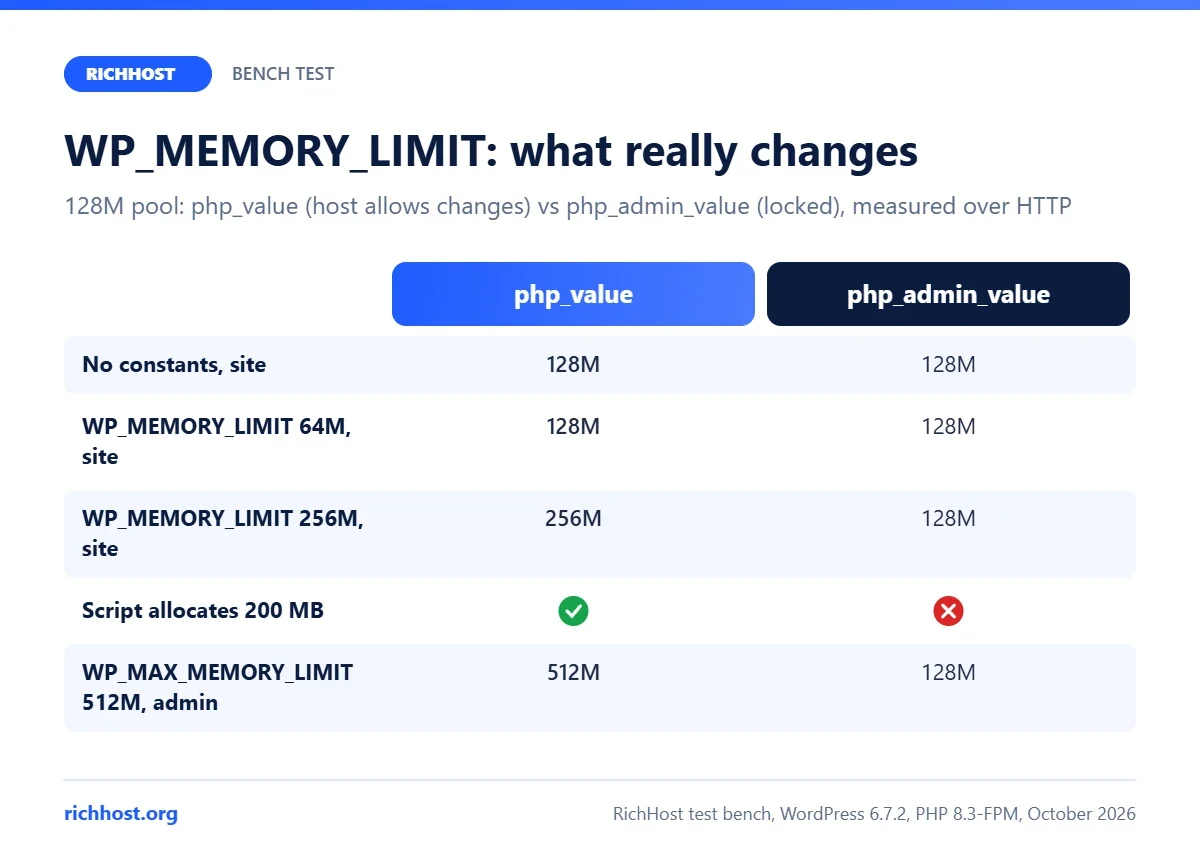
The common advice “add WP_MEMORY_LIMIT 256M” only works when the host lets PHP change memory_limit. We compared two PHP-FPM pools with the same 128M limit. A test script loaded WordPress and printed the result:
# php_value pool (limit can be changed), WP_MEMORY_LIMIT = 256M
"ini_changeable": true, "WP_MEMORY_LIMIT": "256M", "ini_after_wp": "256M", "alloc_ok_mb": 200, "peak_mb": 204
# php_admin_value pool (limit locked), same constant
"ini_changeable": false, "WP_MEMORY_LIMIT": "256M", "ini_after_wp": "128M"
PHP Fatal error:  Allowed memory size of 134217728 bytes exhausted (tried to allocate 209719296 bytes)
Note that in the second case the constant still “says” 256M while the real limit stays at 128M, and a script that needs 200 MB dies with a 500 error. The source explains why: WordPress only raises the limit when wp_is_ini_value_changeable( 'memory_limit' ) allows it (default-constants.php, lines 46-72), and never lowers it. With WP_MEMORY_LIMIT 64M the site still had 128M.
WP_MAX_MEMORY_LIMIT does not apply to the whole site, only to admin screens (wp-admin/admin.php, line 162), image processing and, since WordPress 6.3, wp-cron. Log from the changeable pool with WP_MEMORY_LIMIT 64M and WP_MAX_MEMORY_LIMIT 512M:
R24MEM front /                       memory_limit=128M
R24MEM admin /wp-admin/              memory_limit=512M
R24MEM front /wp-cron.php?doing_wp_cron=...  memory_limit=512M
In the php_admin_value pool the admin stayed at 128M. If your site fails with Allowed memory size exhausted, find the real limit first instead of adding constants: the steps are in our guide to the Allowed memory size exhausted error.
Check the limit through the browser: Tools > Site Health > Info > Server. wp eval will not help, because WP-CLI runs with its own limit. On the main bench it printed:
$ wp eval 'echo WP_MEMORY_LIMIT, " ", ini_get("memory_limit");'
40M -1
Debugging: where WP_DEBUG_LOG really writes
We triggered a PHP warning on purpose and checked three combinations:
# WP_DEBUG true, the rest default: the error is printed in the page HTML
Warning:  Undefined array key "missing_key" in .../mu-plugins/r24-warn.php on line 3
# + WP_DEBUG_LOG true, WP_DEBUG_DISPLAY false: nothing on the page, file created
-rw-r--r-- 1 www-data www-data 143 wp-content/debug.log
GET /wp-content/debug.log -> HTTP 200, 143 bytes
# WP_DEBUG_LOG '/var/www/r24/logs/wp-debug.log': written there, nothing in wp-content
Three conclusions. nginx serves the default log to anyone who knows the URL, so a path outside public_html is not paranoia (custom paths exist since WordPress 5.1, wp-includes/load.php, lines 593-597). With WP_DEBUG = false WordPress writes nothing to its log even if WP_DEBUG_LOG is set, and the error only reaches the server PHP log. And if the host sets error_log with php_admin_value, debug.log never appears: in such a pool the file was not created and the entry went to the pool log. How to read these entries when you see “There has been a critical error on this website” is covered in our WordPress critical error fix.
Admin: DISALLOW_FILE_EDIT and DISALLOW_FILE_MODS
$ wp eval --user=r24admin '...current_user_can(...)...'
default:               edit_themes=yes edit_plugins=yes install_plugins=yes update_core=yes
DISALLOW_FILE_EDIT:    edit_themes=no  edit_plugins=no  install_plugins=yes update_core=yes
+ DISALLOW_FILE_MODS:  edit_themes=no  edit_plugins=no  install_plugins=no  update_core=no
HTTP (administrator):  theme-editor.php 403, plugin-editor.php 403, plugin-install.php 403, update-core.php 403
DISALLOW_FILE_EDIT removes only the editor capabilities (wp-includes/capabilities.php, line 606). DISALLOW_FILE_MODS on its own removes the editor, installs and updates, and also disables automatic updates (wp_is_file_mod_allowed(), load.php, line 1807), while wp plugin list and WP-CLI updates keep working. Use it only if you never update from the dashboard, otherwise security patches stop arriving. Why the code editor is not a substitute for real hardening is explained in our WordPress security settings guide.
Revisions, autosave, trash
10 saves of one post:
  WP_POST_REVISIONS not set    -> revisions in DB: 10
  WP_POST_REVISIONS 3          -> 3
  WP_POST_REVISIONS false      -> 0
Post with 8 revisions, then WP_POST_REVISIONS 3:
  no new save -> 8, after one save -> 3
So old revisions do not disappear the moment you change the constant: WordPress trims them on the next save of each post. AUTOSAVE_INTERVAL 300 changed the editor setting from "autosaveInterval":60 to 300. For trash we simulated a post trashed 8 days ago: with 30 the daily wp_scheduled_delete task kept it, with 7 it deleted it, and with 0 wp_trash_post() erased the post permanently at once (post.php, line 3885).
Cron, core updates, HTTPS and addresses
DISABLE_WP_CRON. Without the constant one home page view fired POST /wp-cron.php?doing_wp_cron=... and the task ran inside PHP-FPM. With DISABLE_WP_CRON = true five page views produced no wp-cron.php requests, and the task waited for the system scheduler:
$ wp cron event run --due-now
Executed the cron event 'r24_probe_event' in 0.002s.
Success: Executed a total of 1 cron event.
# crontab: every 5 minutes
*/5 * * * * wp --path=/home/USER/web/example.com/public_html cron event run --due-now >/dev/null 2>&1
WP_AUTO_UPDATE_CORE. The WordPress handbook calls ‘minor’ the default, but on a fresh 6.7.2 install the option auto_update_core_major is enabled, so core is ready to auto-update to 6.8 (wp-admin/includes/class-core-upgrader.php, lines 288-312):
no constant:                6.7.3=true  6.8.0=true
WP_AUTO_UPDATE_CORE 'minor': 6.7.3=true  6.8.0=false
WP_AUTO_UPDATE_CORE false:   6.7.3=false 6.8.0=false
DISALLOW_FILE_MODS true:     updater_disabled=true
FORCE_SSL_ADMIN redirects /wp-login.php and /wp-admin/ to https:// (302), public pages are unchanged. If the site URL in the database already starts with https, WordPress turns this on without the constant (default-constants.php, lines 353-359). WP_HOME and WP_SITEURL override the database values but do not rewrite them: the options table kept the old address, and the fields in Settings > General became disabled. Remove the constants and the site goes back to the database address. If after changing addresses or moving the site only the home page and admin open, the cause is usually not wp-config.php; see WordPress 404 on all pages.
WP_CACHE caches nothing by itself: it only allows wp-content/advanced-cache.php to load (wp-settings.php, line 96). On the bench the header from a test drop-in appeared only with WP_CACHE = true and the file present. What really speeds a site up, with numbers, is in how to speed up WordPress. CONCATENATE_SCRIPTS = false affects admin only: the dashboard lost 2 combined load-scripts.php requests and 1 load-styles.php, and separate stylesheets went from 3 to 22. Use it only to hunt a script conflict. SMTP constants are not covered here: the ready mu-plugin is in WordPress not sending emails.
WP_ENVIRONMENT_TYPE accepts only local, development, staging and production. ‘development’ turns on WP_DEBUG if it is not set (default-constants.php, lines 92-98), and a typo such as ‘prod’ silently falls back to production. For ‘local’ WordPress allows application passwords without HTTPS (wp-includes/user.php, line 4995).
Three myths we tested
“WP_MEMORY_LIMIT raises memory on any host.” No: with php_admin_value the real limit stayed at 128M while the constant showed 256M. On hosts without such a lock the constant does work.
“Changing the table prefix makes the site much safer.” The database user sees every prefix with one query, so an SQL injection attack finds it easily:
SELECT table_name FROM information_schema.tables WHERE table_name LIKE '%\_usermeta';
r24_usermeta
wp_usermeta
The WordPress hardening guide lists a custom prefix under “security through obscurity”, which at best stops some automated attacks. The prefix is also baked into the keys r24_capabilities, r24_user_level and the option r24_user_roles, so you cannot change it on a live site with one line. Pick a prefix at install time and leave it.
“Salts must be rotated regularly.” After wp config shuffle-salts the old admin cookie immediately got a 302 to the login page with reauth=1, while the password hash in the database did not change (same md5 before and after). Rotation only logs everyone out. Do it after a breach or a leaked password or wp-config.php; scheduled rotation adds nothing. If the keys are missing or still read “put your unique phrase here”, WordPress generates 64-character values and stores them in the database (pluggable.php, lines 2480-2567). Fresh keys come from the official api.wordpress.org/secret-key/1.1/salt/ service.
Where wp-config.php can live and which permissions to set
WordPress looks for the file in the site root and, if it is not there, one level up, provided the parent folder has no wp-settings.php of another install (wp-load.php, lines 47-55). The bench confirmed both paths:
$ wp config path
/var/www/r24/wp-config.php            # file above the root /var/www/r24/public
HTTP request: get_included_files() -> /var/www/r24/wp-config.php
GET /wp-config.php (file above root) -> 404
GET /wp-config.php (file in root)    -> 200, 0 bytes
While PHP works, the file in the root returns an empty page, so moving it only helps if the web server ever starts serving PHP as plain text. The WordPress handbook calls the gain minimal. Permissions matter more. PHP on the bench ran as www-data:
root:root         600 -> HTTP 500  require_once(/var/www/r24/wp-config.php): Failed to open stream: Permission denied
root:www-data     640 -> HTTP 200
root:www-data     440 -> HTTP 200
www-data:www-data 400 -> HTTP 200
The handbook’s 400 or 440 works when the file owner or group matches the user PHP runs as. When PHP-FPM runs as your own account, 400 or 600 is enough. One more detail: OPcache did not notice the chmod until we reloaded PHP-FPM, so after changing permissions open the site and make sure it still works.
Ready block for a production site
We inserted this fragment into the site copy above “That’s all, stop editing!”, ran php -l, checked the home page (200), the HTTPS redirect for login and the values in wp config list. It contains no passwords or keys. Replace the log path with your own.
/* ===== Production site: tested on WordPress 6.7.2, October 2026 ===== */
define( 'WP_ENVIRONMENT_TYPE', 'production' );

// Debugging off. While diagnosing: WP_DEBUG = true.
// The log is written only with WP_DEBUG = true, and outside the public folder.
define( 'WP_DEBUG', false );
define( 'WP_DEBUG_LOG', '/home/USER/logs/wp-debug.log' );
define( 'WP_DEBUG_DISPLAY', false );

// Memory: works only if the host has not locked memory_limit.
define( 'WP_MEMORY_LIMIT', '128M' );      // site and REST API
define( 'WP_MAX_MEMORY_LIMIT', '256M' );  // admin, wp-cron, image processing

// Admin
define( 'DISALLOW_FILE_EDIT', true );     // removes theme and plugin editors
// define( 'DISALLOW_FILE_MODS', true );  // only if you update via Git or WP-CLI
define( 'FORCE_SSL_ADMIN', true );        // login and admin over HTTPS only

// Content
define( 'WP_POST_REVISIONS', 5 );
define( 'AUTOSAVE_INTERVAL', 120 );       // seconds, default 60
define( 'EMPTY_TRASH_DAYS', 7 );          // 0 = no trash, deletion is permanent at once

// Scheduler: run from system cron, not from page views
define( 'DISABLE_WP_CRON', true );

// Core: minor updates only (a fresh install also takes majors)
define( 'WP_AUTO_UPDATE_CORE', 'minor' );
If you enable DISABLE_WP_CRON, add the cron job in your panel right away, otherwise scheduled posts and plugin backups stop running. On RichHost hosting plans, jobs are added in our own control panel with an AI assistant. If PHP-FPM runs as your user (the standard setup on shared hosting), 400 or 600 is enough for wp-config.php.
FAQ
Why did my wp-config.php change have no effect?
Three usual reasons: the constant is placed after require_once ABSPATH . 'wp-settings.php';, it is already defined higher in the file (the first value wins), or PHP still runs the old file from OPcache. On the bench changes applied after 2-3 seconds; with opcache.validate_timestamps = 0 restart PHP-FPM.
How do I see the real memory limit?
In Site Health or with a test PHP file opened in the browser. wp eval shows the WP-CLI limit (-1, unlimited, on the bench), not the one your site runs with.
Should I rotate keys and salts regularly?
No. Rotation only ends all sessions and does not touch passwords. Rotate after a breach or a leaked admin password or copy of wp-config.php.
Does a regular site need DISALLOW_FILE_MODS?
No, if you update plugins from the dashboard: the constant disables both manual and automatic updates. DISALLOW_FILE_EDIT is enough for most sites.
Sources, checked 25.10.2026: Editing wp-config.php and Hardening WordPress (Advanced Administration Handbook, updated 14.10.2026), the WordPress.org secret-key service (referenced by core wp-config-sample.php), WordPress 6.7.2 source code.


