ERR_CONNECTION_TIMED_OUT means the browser asked for a TCP connection and got no reply at all: a firewall is silently dropping packets, the server is down, or DNS points to a wrong or old IP address. If the server actively refuses, you get an instant ERR_CONNECTION_REFUSED instead, and if the connection opens but the site stays silent, the page spins forever or ends in a 504. Start by checking from another network and running curl -v --connect-timeout 10: within 10 seconds its output shows exactly where the chain breaks.
How we tested
RichHost test bench, an isolated container with 2 vCPU / 8 GB, Ubuntu 24.04, Linux kernel 6.18, October 2026. We created a separate network namespace with addresses from the documentation range 203.0.113.0/24, our own DNS server and a separate nginx 1.24 instance; the iptables rules existed only inside that namespace, which was deleted after the test. Browser: headless Chromium 141.0.7390.37 (Playwright 1.56), no proxy, a fresh context per scenario. Also curl 8.5.0, OpenBSD netcat and fail2ban 1.0.2. Time to error for the dropped SYN was measured three times, the other scenarios once or twice, and each was also checked with curl. These are lab results, not figures from RichHost production servers.
What the bench showed: TIMED_OUT, REFUSED, 504 and NXDOMAIN
We reproduced every situation behind a site that “won’t open” and recorded Chromium’s exact error code and how long the browser waited before giving up.
| Bench scenario | Chromium 141 | Time to error | curl | nc -vz |
|---|---|---|---|---|
| Firewall silently drops SYN (iptables DROP) | ERR_CONNECTION_TIMED_OUT | 133.6 s (three runs: 133.56-133.75 s) | exit 28, Timeout was reached | timed out |
| Nothing listens on the port (kernel answers RST) | ERR_CONNECTION_REFUSED | 0.05-0.09 s | exit 7, Connection refused | Connection refused |
| Firewall rejects (iptables REJECT) | ERR_CONNECTION_REFUSED | 0.04-0.12 s | exit 7, Connection refused | Connection refused |
| Server accepts the HTTP connection and never answers | no error, page keeps loading | over 600 s (we stopped the test) | exit 28 only with -m, 0 bytes received |
succeeded! |
| Port 443 accepts, but TLS never answers | ERR_TIMED_OUT | 30.1 s | exit 28 after Client hello | succeeded! |
| Nginx proxy, backend accepted the request and is silent | HTTP 504 | 60.05 s | HTTP 504, exit 0 | succeeded! |
| Nginx proxy, backend behind a DROP firewall | HTTP 504 | 60.06 s | HTTP 504, exit 0 | succeeded! |
| Nginx proxy, backend not running | HTTP 502 | 0.05-0.13 s | HTTP 502, exit 0 | succeeded! |
| Domain does not exist (NXDOMAIN) | ERR_NAME_NOT_RESOLVED | 0.05-0.07 s | exit 6, Could not resolve host | Name or service not known |
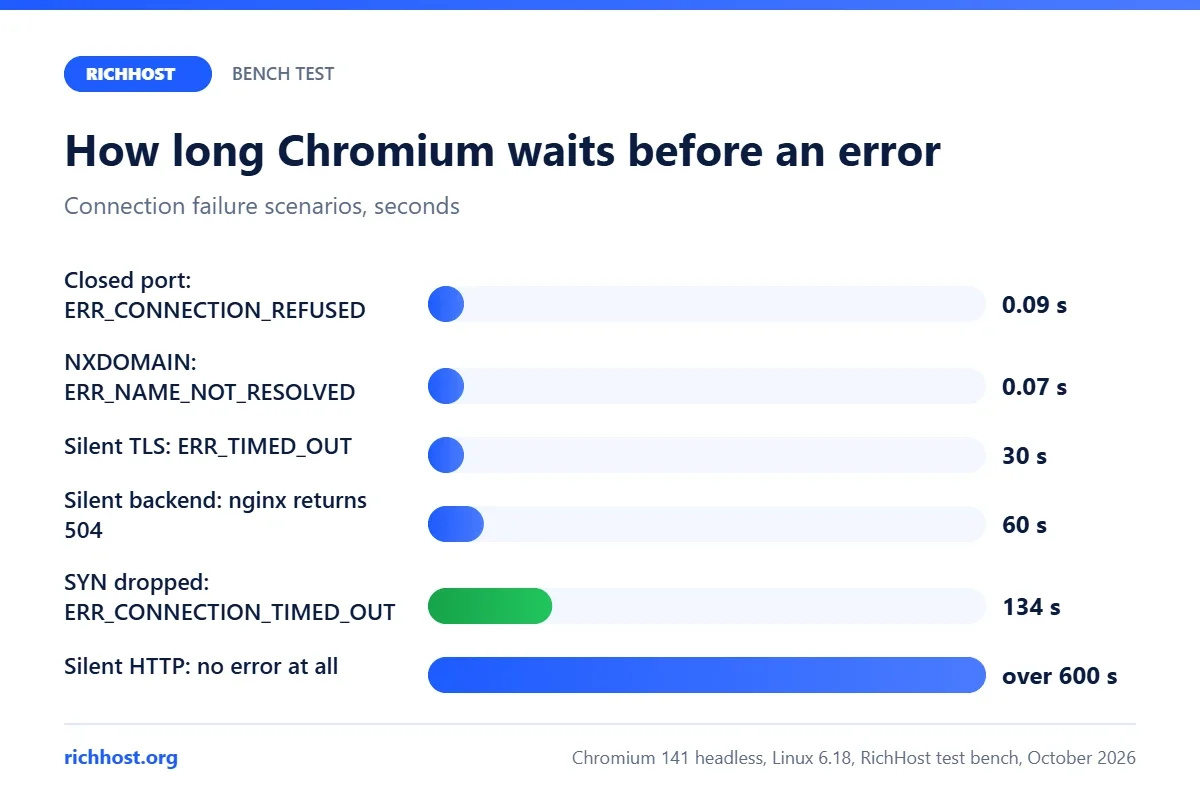
Three findings that typical guides miss. First, the 134-second wait is set by the operating system kernel, not by Chromium. On Linux, net.ipv4.tcp_syn_retries defaults to 6, and the kernel reports the error to the browser after the last SYN retry; curl without --connect-timeout gave up after the same 133.9 s on the bench. Windows with default settings gives up sooner, roughly after 21 seconds (not tested on the bench). Second, ERR_CONNECTION_TIMED_OUT only appears when TCP itself gets no answer. When the server accepted the connection and then hung, Chromium showed no error over HTTP even after 10 minutes, while over HTTPS it aborted the unfinished TLS handshake after 30 seconds with a different code, ERR_TIMED_OUT. Third, a firewall REJECT rule looks to the browser exactly like a stopped web server, while a DROP rule produces the timeout.
Codes 502 and 504 belong to a different class: the connection to nginx is up, and nginx itself reports that the backend failed. These cases have their own guides: 504 Gateway Timeout error and 503 Service Unavailable error. If the domain does not resolve and Chrome shows DNS_PROBE_FINISHED_NXDOMAIN, read how to fix DNS_PROBE_FINISHED_NXDOMAIN.
Telling “firewall drops”, “nothing listening” and “server slow” apart from a terminal
Below is real, shortened output from the bench. Replace the test names with your domain.
1. A firewall silently drops packets. curl reaches the Trying line and waits until the --connect-timeout limit:
$ curl -v --connect-timeout 10 http://drop.bench.test/
* IPv4: 203.0.113.11
*   Trying 203.0.113.11:80...
* ipv4 connect timeout after 10000ms, move on!
* Failed to connect to drop.bench.test port 80 after 10002 ms: Timeout was reached
curl: (28) Failed to connect to drop.bench.test port 80 after 10002 ms: Timeout was reached

$ nc -vz -w 5 drop.bench.test 80
nc: connect to drop.bench.test (203.0.113.11) port 80 (tcp) timed out: Operation now in progress
2. The port is closed or the firewall answers with REJECT. The refusal arrives within milliseconds:
$ curl -v http://closed.bench.test/
*   Trying 203.0.113.12:80...
* connect to 203.0.113.12 port 80 ... failed: Connection refused
curl: (7) Failed to connect to closed.bench.test port 80 after 0 ms: Couldn't connect to server

$ nc -vz -w 5 closed.bench.test 80
nc: connect to closed.bench.test (203.0.113.12) port 80 (tcp) failed: Connection refused
3. The server accepted the connection but does not answer. nc reports success, curl sends the request and receives 0 bytes. The network and firewall are fine here, so look at the application:
$ nc -vz -w 5 hang.bench.test 80
Connection to hang.bench.test (203.0.113.13) 80 port [tcp/http] succeeded!

$ curl -v -m 15 http://hang.bench.test/
* Connected to hang.bench.test (203.0.113.13) port 80
> GET / HTTP/1.1
* Operation timed out after 15002 milliseconds with 0 bytes received
curl: (28) Operation timed out after 15002 milliseconds with 0 bytes received
Quick cheat sheet: Trying without Connected plus exit code 28 means a connection timeout, code 7 with Connection refused means a refusal, Connected with no response means a slow or hung server, and code 6 means a DNS problem. If a backend hangs behind a proxy, curl gets a ready-made HTTP/1.1 504 Gateway Time-out from nginx after exactly 60 s, because that is the default for both proxy_connect_timeout and proxy_read_timeout.
To test a specific server while bypassing DNS (for example, the new one after a migration), supply the IP manually. On the bench we reached nginx on 127.0.0.1 this way:
$ curl -sS -o /dev/null -w "HTTP %{http_code}, IP %{remote_ip}\n" --resolve example.com:8080:127.0.0.1 http://example.com:8080/
HTTP 200, IP 127.0.0.1
The same on Windows: Test-NetConnection
We did not run these commands on the bench; this describes the standard tools in Windows 10 and 11. In PowerShell run:
Test-NetConnection example.com -Port 443
Resolve-DnsName example.com
curl.exe -v --connect-timeout 10 https://example.com/
Test-NetConnection shows TcpTestSucceeded : True if the port accepted the connection, and False plus a warning about the failed TCP connect if it did not. DROP and REJECT both give False, so tell them apart by timing: a refusal comes back noticeably faster, while a timeout runs to the system limit. If the name does not resolve, you get a name resolution warning instead. curl.exe ships with current Windows and returns the same exit codes 28, 7 and 6 as on Linux.
For visitors: is it just you or everyone?
- Open the site on your phone over mobile data, with Wi-Fi and VPN off. If it works there but not at home or in the office, your network’s IP is probably blocked or something on your computer interferes.
- Open a few other sites. A timeout everywhere points to your connection, router or proxy, not the site.
- Turn off VPN, proxy (Windows: Settings > Network and Internet > Proxy) and the antivirus web shield. If the site opens after that, add it to the exceptions.
- Flush the DNS cache (
ipconfig /flushdnson Windows, Clear host cache onchrome://net-internals/#dns) and check the hosts file for old lines with this site’s IP.
For site owners: five real causes and how to confirm them
1. Your IP was banned by fail2ban or the panel firewall
The classic “my site is down but the host says everything works”: the host’s monitoring sees the site, you do not, because after a few failed SSH, FTP or mail logins fail2ban banned your address. On the bench we ran fail2ban 1.0.2 inside the same isolated namespace and “mistyped the password” three times from two test addresses. An important detail you can check in /etc/fail2ban/action.d/iptables.conf: the default action blocks with REJECT --reject-with icmp-port-unreachable, so a banned visitor gets an instant refusal, not a timeout. The timeout appears when the ban uses DROP:
-A f2b-r26def -s 203.0.113.77/32 -j REJECT --reject-with icmp-port-unreachable
-A f2b-r26drop -s 203.0.113.78/32 -j DROP

$ curl -sS -o /dev/null -w "HTTP %{http_code}\n" --interface 203.0.113.10 http://ok.bench.test/
HTTP 200
$ curl -sS -o /dev/null -w "HTTP %{http_code}\n" --interface 203.0.113.77 http://ok.bench.test/
curl: (7) Failed to connect to ok.bench.test port 80 after 0 ms: Couldn't connect to server
HTTP 000
$ curl -sS -o /dev/null -w "HTTP %{http_code}\n" --connect-timeout 10 --interface 203.0.113.78 http://ok.bench.test/
curl: (28) Failed to connect to ok.bench.test port 80 after 10002 ms: Timeout was reached
HTTP 000
$ fail2ban-client set r26-default unbanip 203.0.113.77
1
$ curl -sS -o /dev/null -w "HTTP %{http_code}\n" --interface 203.0.113.77 http://ok.bench.test/
HTTP 200
Address 203.0.113.10 is not banned, 203.0.113.77 is banned by the default action (REJECT), 203.0.113.78 by an action with DROP.
On your own server, check sudo fail2ban-client status and unban the address in the right jail. If a hosting control panel manages the firewall, remove the ban there. To avoid banning yourself again, add your static IP to ignoreip. Other common server protection gaps are covered in 5 server security holes. On shared hosting you have no root access, so ask support to lift the block and include your public IP address.
2. DNS still points to the old server after a migration
If the old server is switched off, visitors with a cached old A record get a timeout while others already see the new site. A separate trap is an AAAA record pointing to an IPv6 address where the site is not configured. Compare dig +short A example.com and dig +short AAAA example.com with the IP in your hosting panel, and test the new server with curl --resolve as shown above. The migration steps are covered in hosting migration without losses, and the records themselves in DNS records and domain management.
3. The server or cloud firewall closed ports 80 and 443
If SSH works but the web ports time out, look for a DROP rule: sudo iptables -S, sudo nft list ruleset or sudo ufw status verbose. On a cloud VPS, also check the security group or firewall in the provider’s panel: it drops packets before they reach the server, and those rules are invisible from inside the system.
4. The web server is not running: instant REFUSED
Check whether anything listens on the port. This is how it looks on the bench, where nginx runs on 8080:
$ ss -tlnp | grep ':8080 '
LISTEN 0  511  0.0.0.0:8080  0.0.0.0:*  users:(("nginx",pid=25374,fd=5),...)
If there is no line for 80 or 443, run sudo nginx -t, fix the configuration error and restart the service.
5. The server is down or overloaded
A timeout for every visitor plus a silent SSH means the server is off or the data center network failed: check the status and console in the provider’s panel. Under peak load, when the queue of new connections is full, the server stops answering SYN packets and new visitors get ERR_CONNECTION_TIMED_OUT while existing sessions still work. If the connection opens but PHP cannot keep up, you no longer see a network error but a 502, 503 or 504. In the bench nginx log these cases differ by a single line:
connect() failed (111: Connection refused) while connecting to upstream          -> 502
upstream timed out (110: Connection timed out) while connecting to upstream      -> 504
upstream timed out (110: Connection timed out) while reading response header ... -> 504
Decision table: symptom, check, fix
| Symptom | What to check | What to do |
|---|---|---|
| Timeout only for you, the site works over mobile data | curl -v from your network and another one; fail2ban-client status |
Unban the IP and add it to ignoreip; on shared hosting contact support with your IP |
| Timeout on every site | VPN, proxy, antivirus, router | Disable them one by one, restart the router |
| Timeout for everyone, SSH silent too | Server status in the provider’s panel | Start or reboot the server from the console, contact the provider |
| SSH works, ports 80 and 443 time out | iptables -S, nft list ruleset, ufw status, cloud firewall |
Open 80/tcp and 443/tcp, remove the DROP rule |
| Instant ERR_CONNECTION_REFUSED | ss -tlnp, nginx -t, REJECT rules, fail2ban ban |
Start the web server, fix the config or lift the ban |
| After a migration it works for some, times out for others | dig +short A and AAAA, hosts file |
Fix the records, remove a wrong AAAA, wait out the TTL, flush caches |
| nc says “succeeded” but the page loads forever | curl -v -m 15, PHP and application logs |
Find the hung process or slow query; behind a proxy this becomes a 504 |
| HTTP works, HTTPS gives ERR_TIMED_OUT after about 30 s | openssl s_client -connect example.com:443 -servername example.com |
Make sure a TLS web server really listens on 443 and is not overloaded |
| ERR_NAME_NOT_RESOLVED or DNS_PROBE_FINISHED_NXDOMAIN | dig example.com, NXDOMAIN status |
Check the domain’s delegation and records |
On the bench, openssl s_client against a port that goes silent after connecting simply hung without any server reply until we killed it after 8 seconds: the same symptom Chromium turns into ERR_TIMED_OUT.
The first 10 minutes when a site will not open
- Do not change things at random: restarting everything erases the traces of the cause.
- Write down the exact error text and the time with the time zone. TIMED_OUT, REFUSED, 504 and NXDOMAIN lead in different directions.
- Check the site from another network and from an external monitoring service. Hosting monitoring set up in advance tells you at once whether the site was down for everyone.
- Run
curl -v --connect-timeout 10andnc -vz: they separate the network from the application. - When you contact support, include the domain, the time, your public IP address, the curl output and the result from another network. With those facts, “everything works on our side” turns into a concrete check of a ban or a route.
Chromium error names: what each one means
Names and numeric codes come from the official net_error_list.h in the Chromium source (checked 25.10.2026); the behavior was confirmed on the bench.
| Error | Code | Meaning |
|---|---|---|
| ERR_CONNECTION_TIMED_OUT | -118 | A connection attempt timed out: nobody answered the SYN |
| ERR_TIMED_OUT | -7 | A generic operation timeout; on the bench this is how an unanswered TLS handshake ended |
| ERR_CONNECTION_REFUSED | -102 | The connection attempt was refused: closed port or a REJECT rule |
| ERR_CONNECTION_RESET | -101 | The connection was reset by a TCP RST, usually after it was established |
| ERR_NAME_NOT_RESOLVED | -105 | The host name could not be resolved; Chrome’s error page shows DNS_PROBE_FINISHED_NXDOMAIN |
| ERR_ADDRESS_UNREACHABLE | -109 | The IP address is unreachable, usually no route to the host or network |
| ERR_INTERNET_DISCONNECTED | -106 | The browser thinks there is no Internet connection; we saw it on the bench until the namespace had a default route |
If the browser says ERR_TOO_MANY_REDIRECTS, the connection actually works and the problem is an endless redirect chain: see ERR_TOO_MANY_REDIRECTS fix.
FAQ
Why does Chrome wait more than two minutes before showing the error?
The operating system decides. On the Linux bench with the default tcp_syn_retries = 6, Chromium showed ERR_CONNECTION_TIMED_OUT after 133.6 s. On Windows the system limit is shorter, roughly 21 s.
How is ERR_CONNECTION_TIMED_OUT different from 504 Gateway Timeout?
With TIMED_OUT the browser never connected even to the first server. With a 504 the connection to nginx is up, and after 60 s nginx itself returns an error page because the backend did not answer. Look for the first in the network, DNS and firewall, and for the second in PHP, the database and proxy timeouts.
Ping does not answer. Is the site really down?
No. Many servers block ICMP, so a working site may ignore ping. Test the TCP port instead: nc -vz example.com 443 or Test-NetConnection.
If you are looking for a new home for your site, compare RichHost hosting plans: NVMe disks, our own control panel with an AI assistant, free Let’s Encrypt SSL and servers in Europe and the USA.